Oak Bank Bill Pay Not Working? October 2026 Upgrade Fixes
What Happened During Oak Bank’s October 5–7 Upgrade?
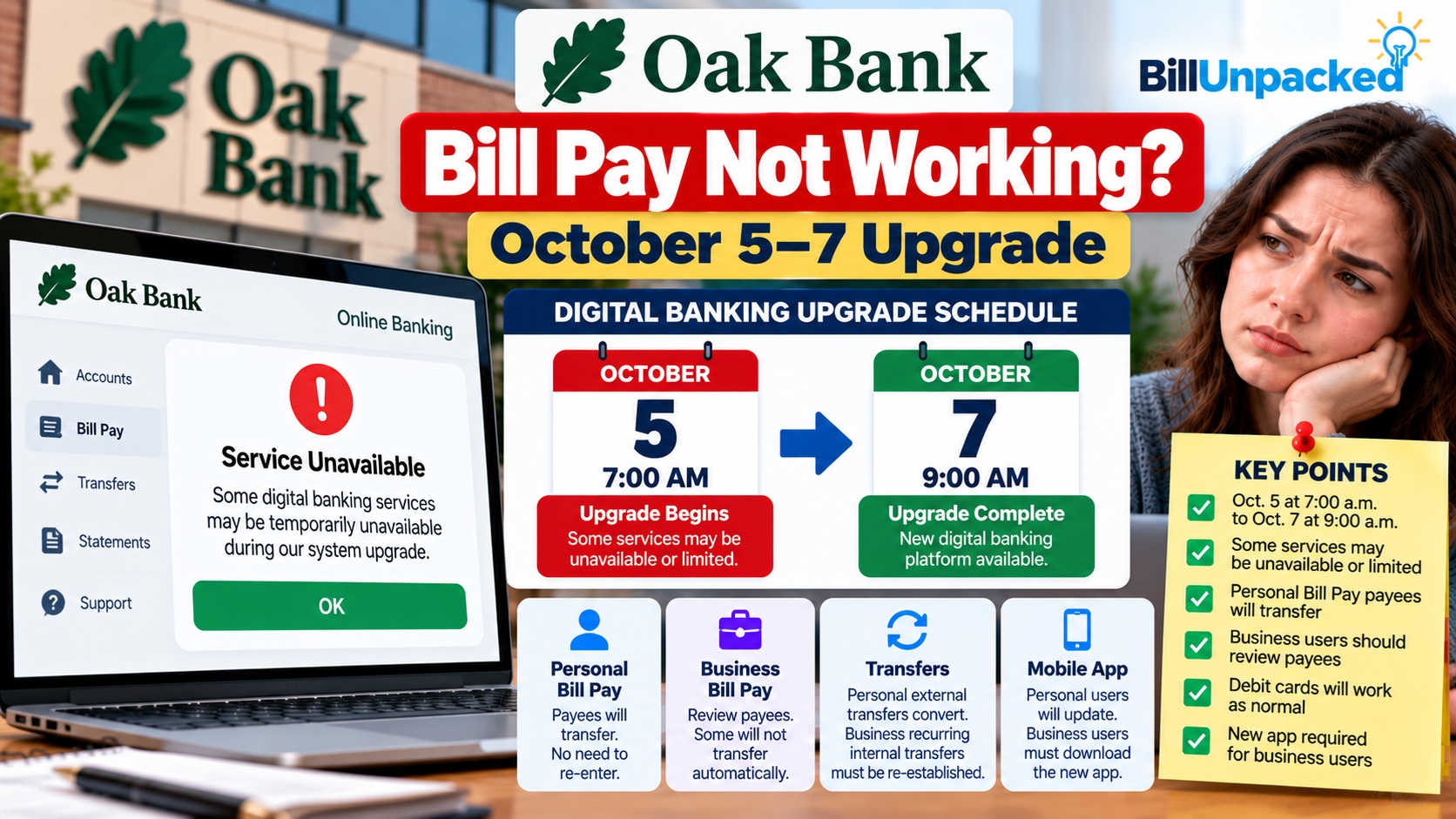
Oak Bank, based in Wisconsin, announced a transition to a new digital-banking platform for personal and business users. The bank warned that certain digital services could be temporarily unavailable or limited during the transition. The announced schedule was:
| Officially scheduled time | Event | How to interpret it today |
|---|---|---|
| Monday, October 5, 2026, 7 a.m. | Digital-banking upgrade begins | Historical scheduled start |
| October 5–7 | Possible limited availability | Scheduled transition period, not evidence of an outage today |
| Wednesday, October 7, 2026, 9 a.m. | Planned upgrade completion | Official target time; check the bank for any account-specific issues |
The bank’s official announcement is the primary source for these dates. A failed payment after October 7 can have several explanations, including first-login difficulties, a missing business payee, or an account-specific restriction. It should not automatically be attributed to an ongoing bank-wide outage.
What Should Personal Bill Pay Customers Check?
Oak Bank says personal Bill Pay payee information should transfer to the new system. That does not remove the need to check your next scheduled payment.
What Should Business Bill Pay Customers Check?
Oak Bank warns that some business Bill Pay payees will not transfer automatically. Business users should compare the new payee list with their own records, and check every important upcoming payment individually.
The bank also states that recurring internal transfers for business accounts will not carry over and must be re-established. These internal transfers are not the same as all recurring Bill Pay transactions; do not assume every recurring bill payment was deleted or migrated without checking its status.
| Feature | Oak Bank’s published guidance | Recommended check |
|---|---|---|
| Personal Bill Pay payees | Expected to transfer | Verify payees and upcoming payments |
| Personal external transfers | Expected to convert automatically | Check recipient and transfer details |
| Business Bill Pay payees | Some may not transfer | Compare payee list with records |
| Business recurring internal transfers | Must be re-established | Recreate only after checking whether a transfer already exists |
| Business mobile app | Bank directed users to download the new app after the upgrade | Use the official app-store link from Oak Bank |
Should You Pay the Bill Again If It Is Missing?
- Record the original amount, intended pay date, payee and any confirmation number.
- Check whether the payment is pending, completed, cancelled or absent.
- Check the biller’s account for a posted payment, allowing for normal processing time.
- Ask Oak Bank to confirm whether the original payment was sent before initiating a replacement.
- If a due date is imminent, ask the biller about available payment methods and potential late-fee relief. Do not assume fees will automatically be waived.
Oak Bank Mobile App Not Working After the Upgrade?
Oak Bank said personal mobile customers would be prompted to update their existing app. Business mobile customers were instructed to delete their old business app and download the new Oak Bank app, available from the bank’s announced October 7 launch window.
For either account type, visit the bank’s official website to reach the correct app listing. Avoid installing banking apps from links in unexpected text messages or search advertisements.
What If Login or Bill Pay Still Fails?
How to Contact Oak Bank
Personal banking support: 608-250-5554
Business banking support: 608-250-5558
These are the numbers published on Oak Bank’s upgrade page. Check that page for current details before calling.
How to Avoid Upgrade-Themed Banking Scams
Banking conversions can create confusion that scammers exploit. Never share a one-time passcode, password or complete card number with someone who contacts you unexpectedly. Navigate directly to the bank’s official site or call its published number. Do not trust a message simply because it mentions the October 2026 upgrade.
Quick Answers
| Question | Answer |
|---|---|
| Is Oak Bank Bill Pay down today? | The October 5–7 maintenance window is over; the published schedule alone cannot confirm today’s service status. |
| When was the upgrade scheduled to finish? | October 7, 2026, at 9 a.m. |
| Did personal Bill Pay payees transfer? | Oak Bank said they should transfer; verify your own list. |
| Did all business payees transfer? | No such guarantee; Oak Bank warned that some would not. |
| What about business recurring internal transfers? | Oak Bank says they need to be re-established. |
| Should I pay a missing bill again? | Confirm the original payment status first to avoid a duplicate. |
Bottom Line
Oak Bank’s October 5–7, 2026, digital-banking upgrade is a historical scheduled event. If you are having trouble with Bill Pay after that period, focus on your current login, payees, scheduled payments and any business transfers that need to be recreated. For account-specific answers or confirmation of a present outage, contact Oak Bank directly.
Related BillUnpacked Guides
- Bank3 Bill Pay Not Working After Its Upgrade
- State Bank of Downs Bill Pay Problems
- How Long Pending Transactions Take to Clear
Official Sources
Reviewed: October 11, 2026. This independent guide is not affiliated with Oak Bank. The bank’s upgrade notice documents a scheduled transition, not a real-time availability guarantee. Verify account-specific information with the bank.